Smart Printer: Print Documents
- 3.9
- Rating
- 10.00M
- Installs
- Free
- Price

 Analysis by App-foxy
Printing from a phone sounds simple until a document is buried in a cloud folder, a photo is cropped badly, or the printer refuses to appear. I tested Smart Printer: Print Documents as a practical tool for those everyday moments, and I found an app that aims to make mobile printing less intimidating. It is a free tools app from Albert Gerassimov, available for users aged Everyone, with optional in-app purchases ranging from $3.99 to $49.99 per item.
My experience was most positive when I treated it as a convenient bridge between a phone and a printer rather than as a complete replacement for every printer maker’s own software. It can be useful at home, in a small office, or when helping someone else print from a device they do not know well. The important question is not simply whether it prints, but whether the process feels understandable and manageable for people with different reading, movement, vision, hearing, and situational needs.
How the app feels to navigate and read
The first thing I look for in a printing app is not decoration; it is whether I can tell what to do next. Smart Printer: Print Documents benefits from a straightforward purpose. I am not opening it to manage a large digital library or edit a document extensively. I am opening it because I want something on paper. That narrow purpose can make the experience easier for a person who prefers focused tools over crowded multifunction apps.
You May Also Like

 Blood Strike: 2.5 Anniversary
Blood Strike’s Loadouts Turn Every Drop Into a Tactical Gamble
A close look at Blood Strike’s custom loadouts: how fast access to signature weapons reshapes its battle royale rhythm, rewards preparation, and narrows the gap between fights.

 Pandora - Music & Podcasts
Pandora’s Music Is Easy to Start, but Harder to Recover
Pandora’s strength is its low-effort path from a seed to a station. Its weak spot is how much confidence it asks you to place in connection, setup, and quiet recovery.

 8 Ball Pool
 Is Built on Rivalries, Rematches, and Routine
A close look at the rivalries, rematches, shared routines, and unanswered safety questions that turn a quick pool match into a persistent mobile community.

 Samsung Music
’s Quiet Strength Is Playing What You Already Own
Its reach comes less from spectacle than from dependable access to a personal library. That simplicity is both the app’s strongest retention engine and its ceiling.

 AccuWeather: Weather Radar
AccuWeather Review: A Quick, Clear Forecast for Everyday Decisions
For everyday plans, the best forecast is the one you can understand quickly. AccuWeather makes rain timing, radar, and local conditions easy to act on, with a few trade-offs.

 Hill Climb Racing
Why Hill Climb Racing Still Turns Crashes Into One More Run
A tiny car, a bumpy hill and one more upgrade: Hill Climb Racing keeps resurfacing because its simple chaos makes every near-miss feel personal.
More From Our News Desk



In my workflow, the clearest approach is to prepare the file before opening the printer tool. If I already know whether I am printing a document, image, or another supported item, I spend less time searching through menus. This is a useful habit for anyone who finds changing screens tiring or confusing: locate the file first, then use the printing app for the final step rather than trying to organize everything inside one place.
The app’s current version is 1.3.5, and its popularity suggests that many people have found a reason to keep it available. It has passed five million installs and holds a 4.1 average rating from roughly 121 thousand ratings. Those figures do not guarantee that every printer or phone will behave identically, but they do make it feel like a serious option rather than an obscure experiment.
Readability depends heavily on the phone itself. A user who needs larger text, stronger contrast, or magnification should adjust the device’s display and accessibility settings before starting. I would also recommend keeping the phone in a familiar orientation and avoiding unnecessary switching between the document viewer, printer selection screen, and system sharing tools. Each transition creates another chance to lose track of the task.
One practical tip is to print a short test page before sending a long document. This is not only about saving paper. It lets me check whether the chosen printer, paper direction, and basic layout are correct while the task is still easy to undo. For someone who finds repeated confirmation difficult, a small test reduces the cost of a mistake and makes the next attempt more predictable.
Why a focused printing workflow can help
Traditional desktop printing often exposes many settings at once. That can be useful for advanced work, but it can also overwhelm someone who only wants a readable copy of a form. A mobile app can feel less demanding because the phone is already familiar and close at hand. I found this especially helpful when printing a document received in a messaging app: instead of moving it to a computer, I could keep the task near the original file.
There is a trade-off, though. A phone screen is smaller than a monitor, so checking page breaks and tiny text is harder. I would not rely on a mobile preview alone for an important multi-page document. If the document contains tables, unusual formatting, or very small print, opening it in a dedicated document reader first is the safer choice.
Motor, sensory, and situational access in daily use
For people with limited hand movement, the appeal of phone-based printing is that it may avoid a long trip to a desk or a physical printer panel. I can prepare the file while seated and complete the job from a comfortable position. That convenience matters in real life: a person recovering from an injury, someone working from bed, or a caregiver helping another person may value reducing unnecessary movement more than having a large collection of print controls.
At the same time, touchscreens are not automatically easier for every user. Small controls, accidental taps, and scrolling can be frustrating for people with tremors or reduced precision. My advice is to slow down at the printer-selection stage and confirm the chosen device before continuing. If the phone offers touch accommodations, switch-control tools, voice access, or a larger display mode, those settings may make the process more comfortable, but the exact result will depend on the phone and operating system.
Smart Printer: Print Documents is built for Android devices running version 10 or later. That makes the phone’s own accessibility layer an important part of the experience. A user who depends on a screen reader, magnification, voice commands, or customized touch timing should test the complete path rather than assuming that support in the phone automatically means every screen in the app will behave perfectly.
For sensory access, the most useful approach is to avoid relying on a single signal. If a user cannot easily hear a notification, the physical result—the printer beginning its job—may be more meaningful than a sound. If vision is limited, a person may need a sighted helper to confirm the printer name or document preview, especially during the first setup. I would not describe the app as a specialist accessibility tool, but it can fit into an accessible workflow when paired with the phone settings and printer controls that already work for the user.
A particularly useful scenario is helping a family member print a return label. I can receive the file, open it from the phone, select the nearby printer, and stay beside the person while they confirm the paper. This avoids asking them to navigate a computer interface they rarely use. It also exposes a limitation: if the printer is not already easy to identify, the helper may still need to explain network or device choices in plain language.
Situations where mobile printing earns its place
The app makes the most sense when the file begins on a phone. Think of a boarding document, school notice, appointment form, recipe, invoice, or image that needs to be placed on a refrigerator. In these cases, sending the item to a computer first adds friction without adding much value. A direct phone workflow can be faster and less stressful, particularly for people who are comfortable with their phone but not with desktop file management.
It can also be useful in shared homes. Rather than giving every person access to a computer, a household member can print from their own device. This supports independence: a person can keep control of the file and decide when it is ready to print. For someone with cognitive or memory-related challenges, I would create a simple routine—open the file, choose the print option, select the familiar printer, check the preview, and send a test page when needed.
Another non-obvious use is preparing paper copies before leaving a place with unreliable connectivity. I would open the document while the connection is stable and avoid waiting until the last minute. The app is most helpful when it reduces a chain of transfers, but it cannot remove the practical need for the phone, the printer, and the relevant file to be available at the same time.
For a small workplace, the app may suit occasional printing better than a full office workflow. Someone who prints a few forms each week may appreciate not having to maintain a complicated desktop setup. A team that needs shared queues, detailed permissions, consistent templates, or heavy document processing will probably be better served by dedicated office software and the printer manufacturer’s tools.
Where the usual alternatives may be better
The printer brand’s official app is usually the stronger choice when I need model-specific maintenance, ink information, scanning, firmware controls, or detailed paper settings. Smart Printer: Print Documents is more attractive when I want a simpler route from a phone file to a print job. The official alternative may know more about a particular printer, while this app may feel less tied to one manufacturer’s ecosystem.
Built-in operating-system printing is another sensible comparison. If the phone already detects the printer and the document’s own app has a reliable print command, installing another tool may not improve anything. I would choose Smart Printer when the existing route is confusing, unavailable, or inconvenient—not merely because a separate app exists.
Cloud storage and computer-based printing remain better for large batches. On a desktop, I can inspect page breaks, select ranges more comfortably, and organize several files at once. On a phone, I am more likely to miss a layout problem or send the wrong version. The mobile advantage is immediacy, not comprehensive document production.
Barriers I would plan around
The biggest barrier is the physical printing environment, not necessarily the app. A printer may be switched off, unavailable to the phone, loaded with the wrong paper, or located in another room. These problems can be especially difficult for users with limited mobility, low vision, or fatigue. Before beginning, I would check that the printer is powered on and that someone can retrieve the pages if reaching it is difficult.
Another barrier is uncertainty. Printer names can be nearly identical, and a crowded network can make the correct choice unclear. I recommend giving the household printer a distinctive, easy-to-read name if the printer allows it. That small preparation can help users who rely on memory aids or who find it difficult to compare several similar labels.
In-app purchases also deserve attention. The app is free to install, but optional purchases are available, with individual items priced from $3.99 to $49.99. I would involve the actual user in that decision rather than assuming paid options are necessary. For a person who is sensitive to unexpected costs, review the purchase screen carefully and keep the basic workflow separate from any optional upgrade decision.
There is also a privacy consideration in the everyday sense: documents can contain addresses, medical information, school details, or financial records. I would avoid printing sensitive files on a shared printer unless I can collect the pages promptly. The app may simplify sending a job, but it does not change who can physically see the output. That matters just as much as the digital steps.
Users who need highly predictable accessibility behavior should test one complete print job with their preferred assistive settings before depending on the app for an urgent task. Try opening a known file, choosing the printer, reviewing the result, and collecting the page. This reveals more than reading a feature list because the real experience includes the phone model, operating system settings, printer, network, and the user’s own abilities.
Who should use it, and who should skip it?
I would recommend Smart Printer: Print Documents to someone who regularly receives files on an Android phone and wants a less complicated route to paper. It is also a reasonable choice for a helper who prints for relatives, students, or occasional home-office users. The free entry point makes it easy to try without committing to a paid desktop package, while the Everyone age rating keeps the intended audience broad.
I would be more cautious for someone who prints long reports every day, needs precise professional layouts, or depends on printer-specific maintenance features. In those cases, a computer workflow or official printer app is likely to be more dependable. I would also hesitate to make it the only option for a user who cannot tolerate trial and error until the exact printer and accessibility setup have been tested.
As a tool from Albert Gerassimov, it has a clear and practical focus: get documents from a mobile device toward a printer. Its release date was May 1, 2024, so I see it as a relatively recent option rather than a long-established desktop replacement. That is not a criticism by itself, but it is another reason to keep a backup method available for important paperwork.
My inclusive verdict
After using it as a mobile printing shortcut, I see genuine value in Smart Printer: Print Documents. It helps most when the document is already on the phone, the printer is familiar, and the user wants fewer steps than a computer-based setup requires. Its strongest accessibility quality is situational: it can bring printing closer to the person instead of asking the person to move to a workstation.
It is not a magic solution for every ability or environment. Touchscreen precision, small previews, unclear printer names, network problems, and the physical act of collecting pages can still create barriers. The best experience comes from pairing the app with larger text or voice settings, a clearly named printer, a short test print, and a simple routine that someone can repeat.
With over one hundred thousand ratings and a current version of 1.3.5, it has enough visibility to be worth testing for ordinary home printing. I would start with a non-sensitive, one-page file and judge the result on the actual phone and printer. If that test feels comfortable, this free tools app can become a useful part of an inclusive household workflow. If the task demands advanced controls or absolute consistency, I would keep the printer maker’s software or a computer nearby as the better alternative.
FAQs for Smart Printer: Print Documents
01What features does Smart Printer: Print Documents offer?
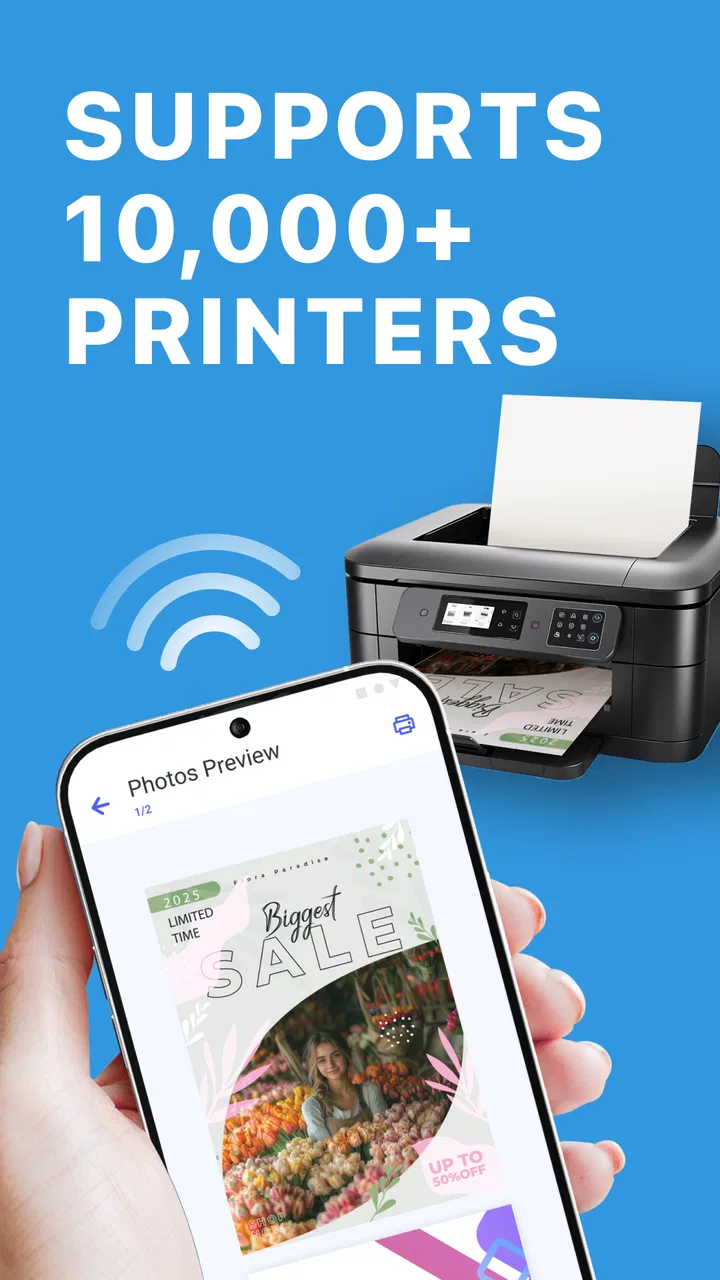
Smart Printer: Print Documents provides a comprehensive suite of features including wireless printing, cloud integration with services like Google Drive and Dropbox, and support for a wide range of file formats such as PDFs, Word documents, and images. It also offers customizable print settings for different paper sizes and types.
02Is Smart Printer compatible with all printers?
Smart Printer is compatible with most Wi-Fi enabled and network printers. However, it’s always a good idea to check the app's compatibility list on its website or within the app description to ensure your specific printer model is supported before downloading.
03How secure is Smart Printer when handling my documents?
The app prioritizes user privacy and security by using encryption protocols for data transfer. It does not store your documents on its servers, ensuring that your sensitive information remains private. It's wise to review the app’s privacy policy for detailed information on data handling.
04Can I print directly from my cloud storage using Smart Printer?
Yes, Smart Printer allows seamless integration with major cloud storage services like Google Drive, Dropbox, and OneDrive. This feature enables users to access and print documents directly from the cloud without needing to download them to their device first.
05Are there any in-app purchases or subscription fees for Smart Printer?
Smart Printer offers a free version with basic features, but to access advanced functionalities like premium print settings and ad-free experience, users may need to make in-app purchases or subscribe to a monthly or annual plan. Check the app store for specific pricing details.
Pros
- Easy to connect with multiple printers.
- Supports various document formats.
- User-friendly interface design.
- Mobile printing from cloud services.
- Fast processing and printing speed.
Cons
- Limited free version features.
- Occasional connectivity issues.
- Requires in-app purchases.
- No support for all printer models.
- High data usage for large files.

Smart Printer: Print Documents
Gallery